
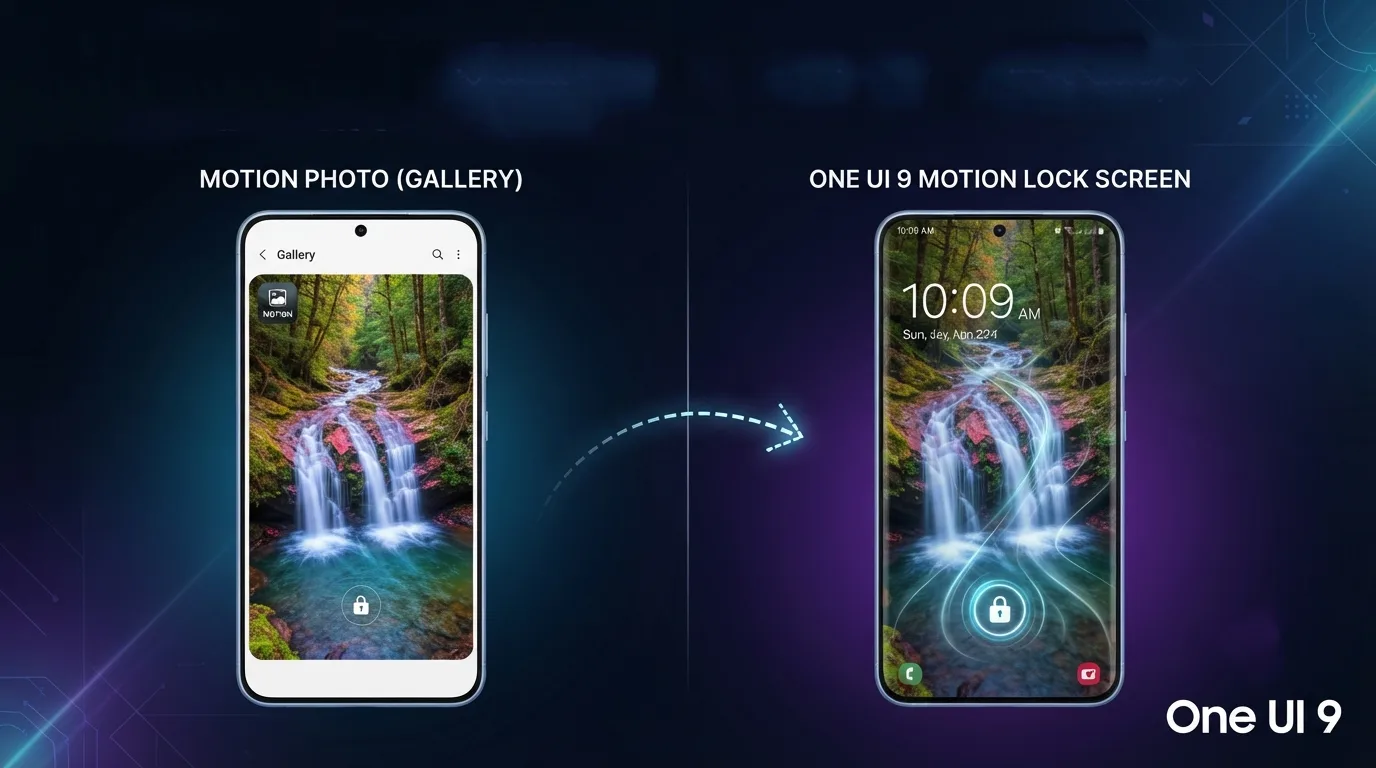
Samsung has quietly made Galaxy lock screens feel more alive—and the change could transform your favorite Gallery memories. One UI 9 lets compatible phones use Motion Photos as animated wallpapers, with support for the lock screen, home screen, or both.
The feature is currently reported on Samsung’s Galaxy Z Fold 8, Galaxy Z Fold 8 Ultra, and Galaxy Z Flip 8, while wider availability may follow. But how do you turn a short camera moment into a smooth wallpaper? In this guide, we explain the process, show what to check before you begin, and reveal what to do if the Motion Photo option is missing.
What Is a Samsung Motion Photo Wallpaper?
A Motion Photo captures a short moving moment surrounding a still image. One UI 9 allows you to leverage this captured movement as an animated wallpaper directly from your Gallery, rather than keeping it tucked away in your photo app.
Unlike a standard video wallpaper that loops continuously, a Motion Photo wallpaper provides a more personal, nuanced animation.
Wallpaper Comparison
| Wallpaper type | Source | Movement | Best for |
|---|---|---|---|
| Still wallpaper | Regular photo | None | Minimal battery usage |
| Motion Photo | Galaxy Motion Photo | Short captured movement | Personal memories |
| Video wallpaper | Video file | Continuous loop | Dramatic effects |
| Wonderland | Good Lock module | Custom motion effects | Advanced customization |
Is Your Samsung Galaxy Compatible?
Currently, the native One UI 9 Motion Photo wallpaper option is confirmed for select devices launched with the stable update:
- Galaxy Z Fold 8
- Galaxy Z Fold 8 Ultra
- Galaxy Z Flip 8
Compatibility Checklist:
- Open Settings.
- Tap About phone > Software information.
- Confirm you are running One UI 9.
- Install any pending software updates via Settings > Software update.
Note: Feature availability may vary by region and carrier-specific firmware. If you do not see the option, check for system updates.
How to Set a Motion Photo as Wallpaper
Follow these steps to customize your device.
Step 1: Choose a Motion Photo in Gallery
Open your Gallery app and find a photo captured in “Motion Photo” mode. Photos with a person waving, a pet moving, or gentle natural elements like swaying trees work best.
Step 2: Open Wallpaper Settings
- Wake your phone and touch/hold an empty space on your Lock screen.
- Tap Wallpapers or Change wallpapers.
- Select Gallery.
Step 3: Select and Preview
- Tap your chosen Motion Photo.
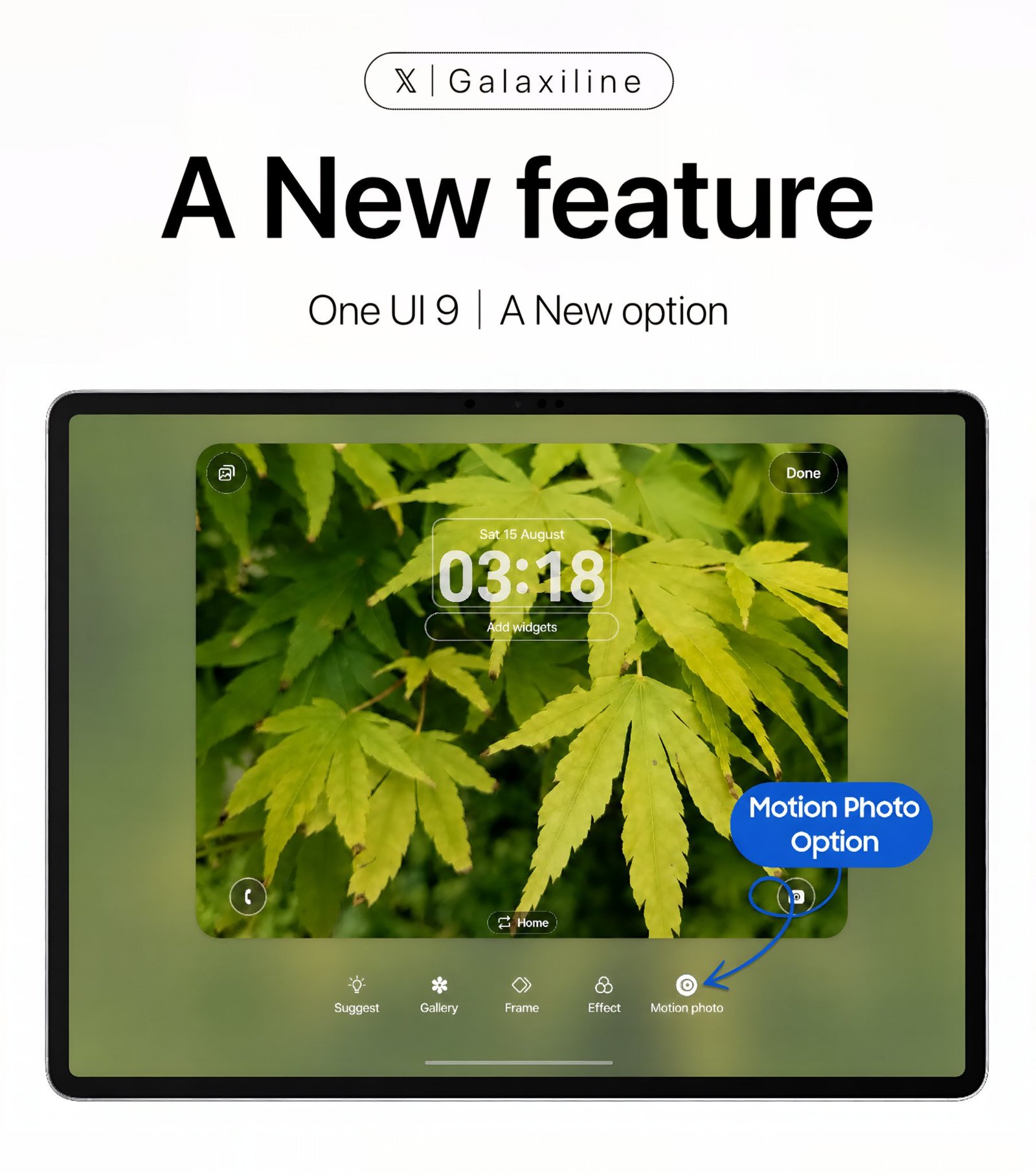
- If supported, look for the Motion Photo toggle or preview interface.
- Use the preview screen to ensure the lock-screen clock doesn’t obscure your main subject.
Step 4: Turn Motion On
Use the animation toggle to enable the movement. Preview the result to ensure the motion feels natural rather than distracting.
Step 5: Set the Wallpaper
Choose to apply the wallpaper to your Lock screen, Home screen, or Both. Tap Done to save your settings.
How to Choose the Best Motion Photo
For the best aesthetic experience, choose images with:
- Clear Composition: Keep the subject away from the clock and notification areas.
- Subtle Movement: A gentle smile, a pet’s head tilt, or wind in the grass is less distracting than rapid camera movement.
- Good Lighting: Well-lit photos ensure the animation remains sharp on your display.
Motion Photo vs. Wonderland
Don’t confuse this native feature with the Good Lock Wonderland module.
- One UI 9 Motion Photo: Native, easy to use, and utilizes photos you already have.
- Good Lock Wonderland: A powerful third-party tool for building complex, layered, and parallax-based wallpapers from scratch.
Common Problems and Fixes
- Option Missing: Ensure you are on One UI 9 and the image is a genuine Motion Photo (not an edited copy or exported JPEG).
- Wallpaper Looks Still: Check that the Motion toggle was set to “On” during the setup process.
- Battery Concerns: Animated wallpapers may slightly increase display power draw. If you notice a significant drop in battery life, use a still image while traveling or gaming.
One UI 9 in latest foldables now let us set a motion photo as wallpaper in both lock and home screens, while retaining the motion. Previously the image always applied as static, but now it shows the motion as well. You may apply live wallpapers natively without third-party apps. pic.twitter.com/K3mTMbLLY4
— Galaxy Techie (@GalaxyTechie) August 17, 2026
FAQs
Can I use a Motion Photo as my lock screen on One UI 9?
Yes, on supported devices, you can set them on the lock screen, home screen, or both.
Do I need Good Lock?
No, the native feature is built directly into the Galaxy wallpaper settings.
Does it use more battery?
It may involve slightly more display activity. If battery life is a priority, consider using a still photo for your wallpaper.