
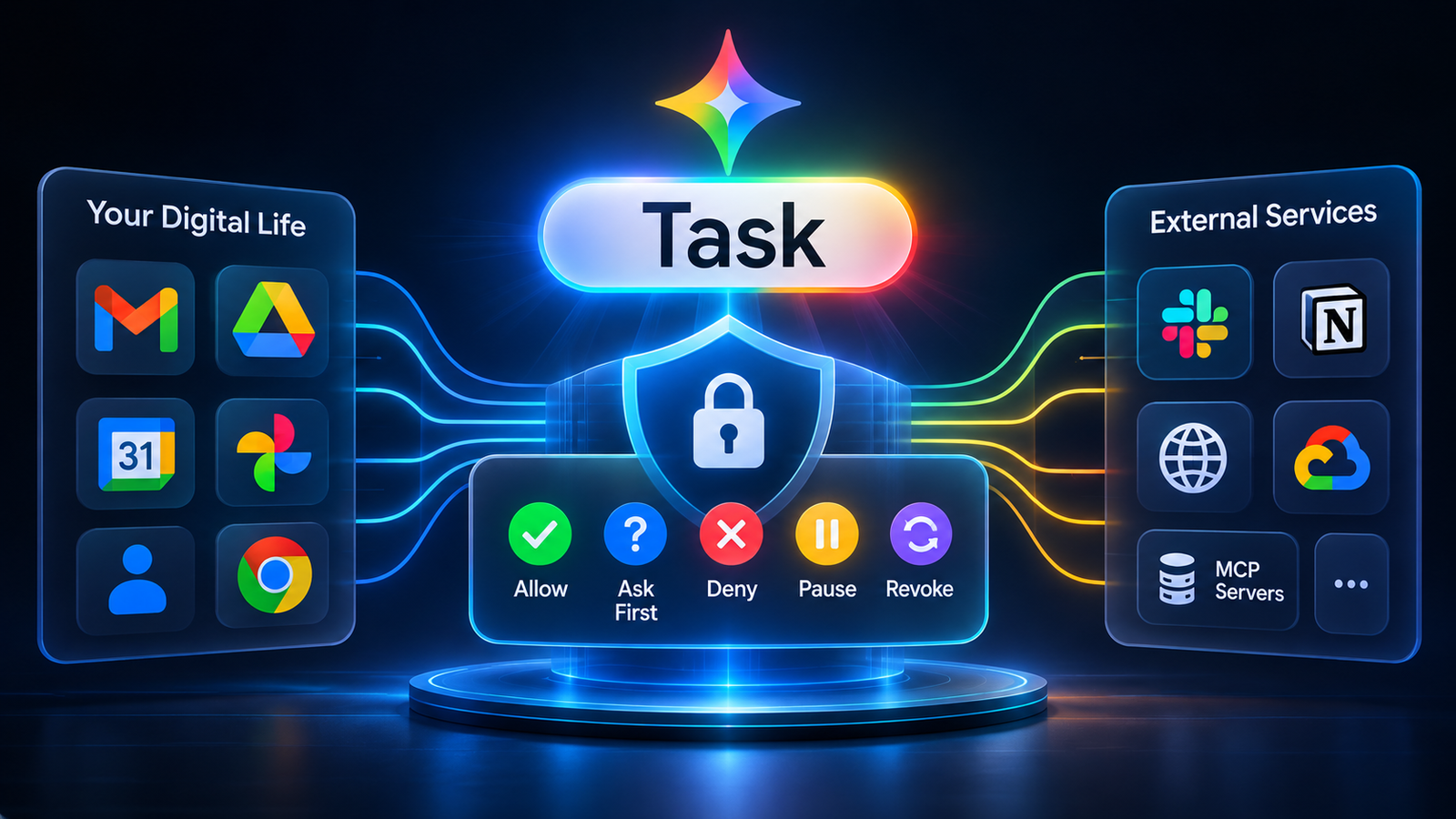
Gemini Spark, which now shows up in the Gemini app as Task, can handle multi-step work across your Google account, your connected apps, your browser sessions, and scheduled workflows. That’s genuinely useful. It’s also a brand-new set of permissions to think about. Before you give an AI agent recurring access to your email, files, calendar, or third-party tools, you should know what it can reach and how to pull that access back.
This checklist is for anyone using Task for personal or professional automation. The goal is simple: give it the smallest set of permissions, apps, schedules, and data it needs to do the job.
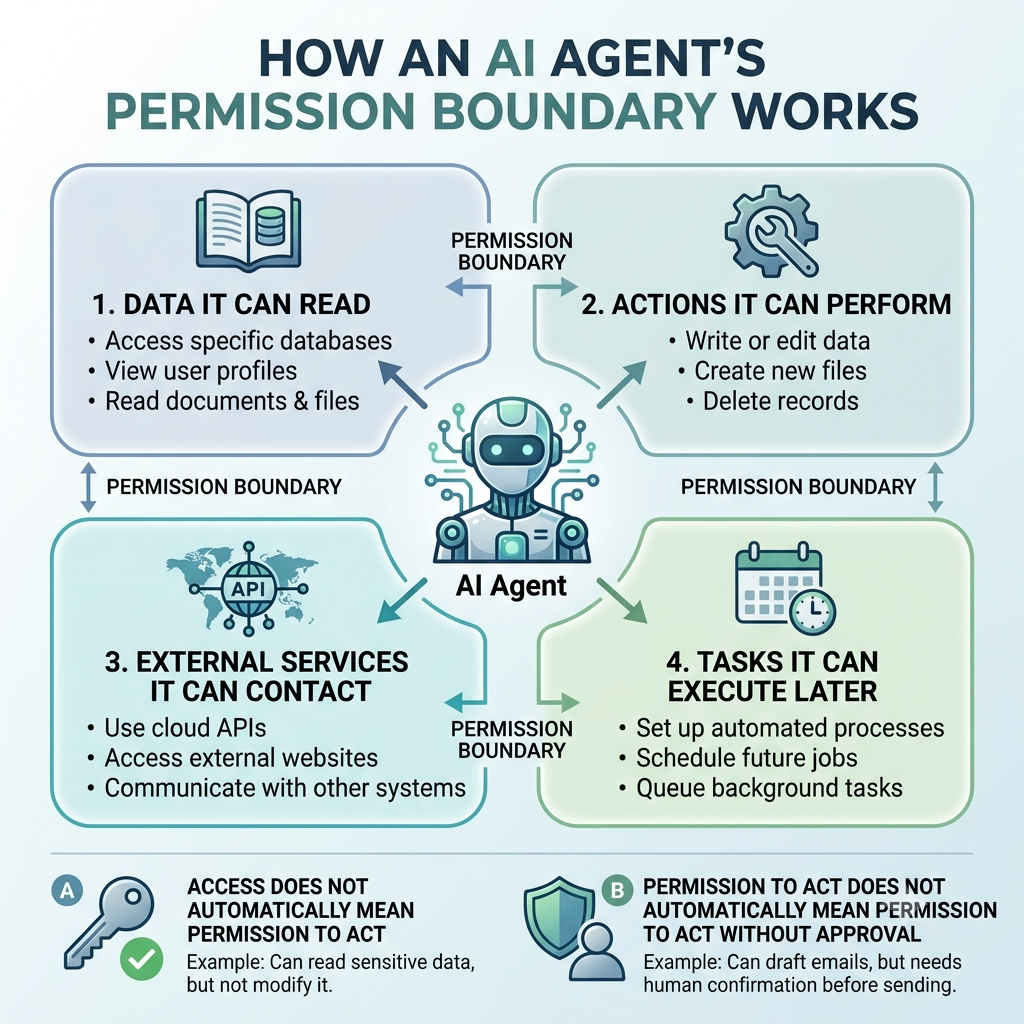
You don’t have to turn Gemini off
You just have to decide on purpose what it can access, what it can do, and when it has to ask you first. Here’s the quick version:
| Control | Why it matters | What to do |
|---|---|---|
| Connected Apps | Decides which outside services Gemini can use | Remove ones you don’t use |
| App actions | Controls whether it can read, create, or delete data | Set risky actions to “Always ask” |
| Browser permission | Decides whether it can browse for tasks | Use “Always ask” unless you have a reason not to |
| Task permissions | Each task has its own permissions and schedule | Open the task thread and work panel first |
| Sensitive tasks | These may need supervision or manual input | Don’t automate health, money, identity, or high-stakes work |
| Custom MCP servers | Google doesn’t secure third-party servers | Connect only trusted ones, revoke the rest |
| Remote browser data | Saved sign-ins can stick around | Delete when you’re done |
| Remote computer data | Code history and files can linger | Clear in Task settings |
Google is upfront that Gemini is still learning and can make mistakes, and that your supervision is what prevents unintended or harmful actions. Take that seriously.
The 12 permissions to review
1. Connected Apps
These decide which services Gemini can use to finish a task. You can connect or disconnect them anytime in Gemini’s Connected Apps settings.
Do this: Open Customise → Connectors and remove anything you’re not actively using. “I might need it later” isn’t a good reason to leave it connected.
2. Google Workspace access
Gemini can pull from Workspace services during a task. Google’s documentation lists Connected Apps, skills, chats, tasks, signed-in websites, Personal Intelligence, and location among the sources Spark may use.
Do this: Ask whether the task really needs Workspace at all. If you’re just researching something, there’s no reason to connect Drive, Gmail, Calendar, and Contacts all at once.
3. Gmail
Email is about as high-stakes as it gets, because an agent could read context, draft messages, or send them. Google says Gemini is designed to ask for your review and confirmation before sending communications, changing or deleting data, making purchases, completing financial transactions, or submitting web forms.
Do this: Keep “Always ask” on for sending email. And never set up a recurring task that emails a list of recipients you haven’t checked.
4. Calendar and scheduling
A scheduled task runs later, when you may not be watching. That makes calendar access a bigger deal than a one-off chat request. Google treats task schedules separately from chat schedules, and you manage them through the task thread and work panel.
Do this: Before you save a recurring task, open the work panel and check the schedule, recipients, actions, and permissions.
5. Drive, Docs, Sheets, and Slides
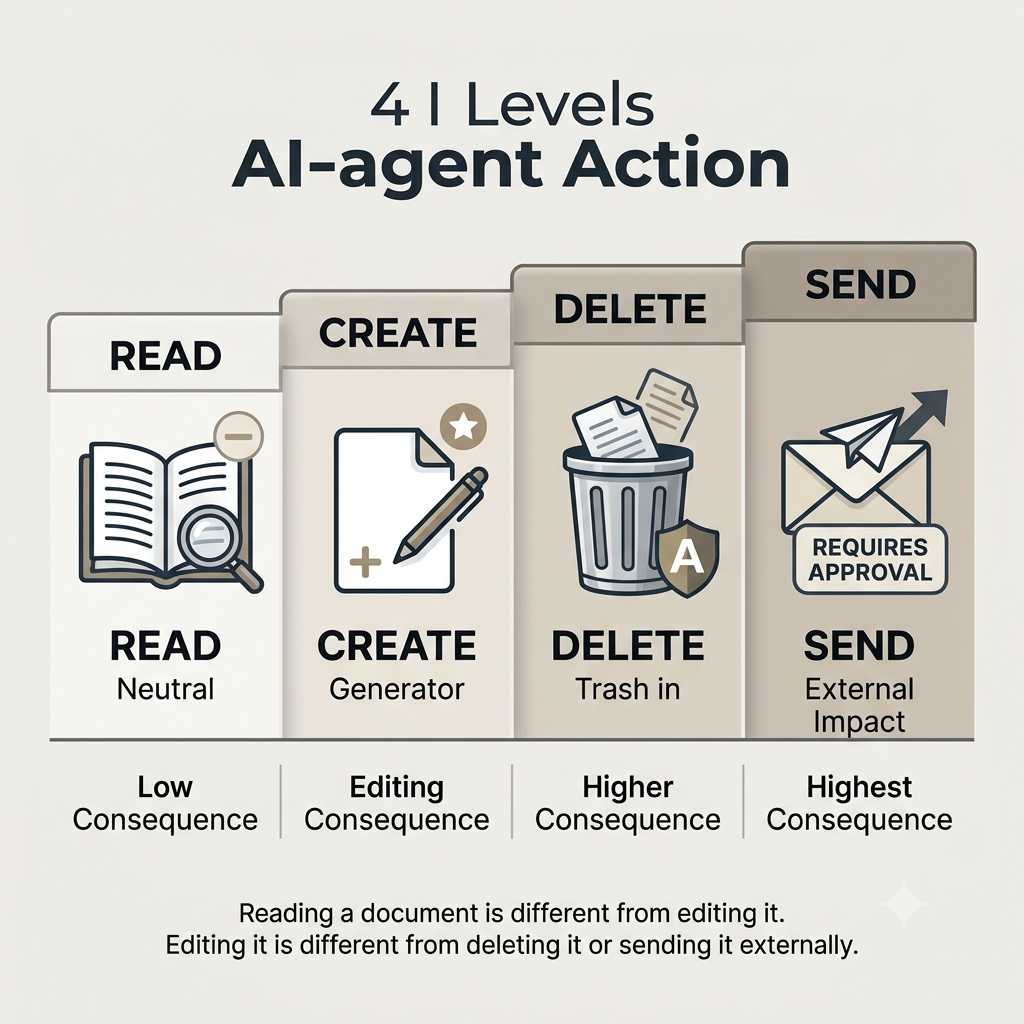
Files can hold confidential business documents, client material, contracts, or personal records. Google says you can control what Gemini does inside a connected app, including actions that read, create, or delete information.
Do this: Keep folders with credentials, contracts, tax records, unreleased work, or client data out of reach. If you can, set up one dedicated working folder for Gemini.
6. Contacts
Spark may use Google Contacts and contact info from signed-in devices when it’s relevant to a task.
Do this: Turn Contacts off if your workflow doesn’t need it. And don’t pair contact access with automated outbound messages unless you’ve reviewed every recipient yourself.
7. Photos and personal media
Google Photos can be connected to Gemini, and Spark may use connected-app data to complete tasks.
Do this: Leave Photos disconnected unless a task truly needs it. Photos can reveal locations, people, documents, and private moments that have nothing to do with what you asked for.
8. Location
Gemini may use your location when it’s relevant, and Google gives you separate device-level controls for location, camera, microphone, and contacts.
Do this: Switch location off unless a task specifically needs it. Skip scheduled tasks that infer, store, or share where you are without a good reason.
9. Browser tasks
Before a browser task starts, Gemini picks which sites to use and may share personal information with them. Google recommends reviewing the plan Gemini in Chrome intends to follow, including whether it understood your prompt, the page, and your personal info correctly.
Do this: Actually read the plan before you approve it. Pay extra attention to login pages, checkout pages, forms, and any site that will receive your details.
10. Sign-in and authentication
When Gemini hits a sign-in page, it asks you to confirm Sign in with Google where that’s available. Otherwise it asks you to take over and sign in yourself.
Do this: Never type a password, payment detail, or other sensitive credential into a task thread. Google advises entering those details directly on the web page instead.
11. Custom MCP servers
If you’re an advanced user, this is the big one. Google says it doesn’t control, monitor, or secure third-party MCP servers, and any data you send to a custom app falls under that app’s privacy practices, not Google’s.
Do this: Before connecting one:
- Check who built it and what their reputation looks like.
- Read the privacy policy and terms.
- Understand exactly what actions it can take.
- Start with read-only access if possible.
- Revoke it as soon as the workflow is finished.
12. Sensitive-data safeguards
Even if you set an action or browser permission to “Always allow,” Google says very sensitive actions still require your permission every time. Gemini is designed to ask before sharing potentially sensitive information, like health, financial, or government-ID data, with a website or connected app.
Do this: Treat this as a safety net, not a plan. If you can design a workflow without sensitive data, do that.
Six things I wouldn’t automate
Some tasks are bad candidates for hands-off automation, even when Gemini technically can do them.
- Bulk email: One wrong recipient list can turn into a privacy or reputation problem fast.
- Purchases and financial transactions: Google says these need confirmation, but that’s no reason to automate them casually.
- Deleting or editing important files: Use a review-first process for anything destructive.
- Health, tax, legal, or identity tasks: Extra safeguards may kick in, but avoiding the risk beats relying on them.
- Submitting web forms: A form might send your data somewhere unexpected, so review the plan first.
- Unvetted MCP integrations: They sit outside Google’s security perimeter.
A safer way to set up any new task
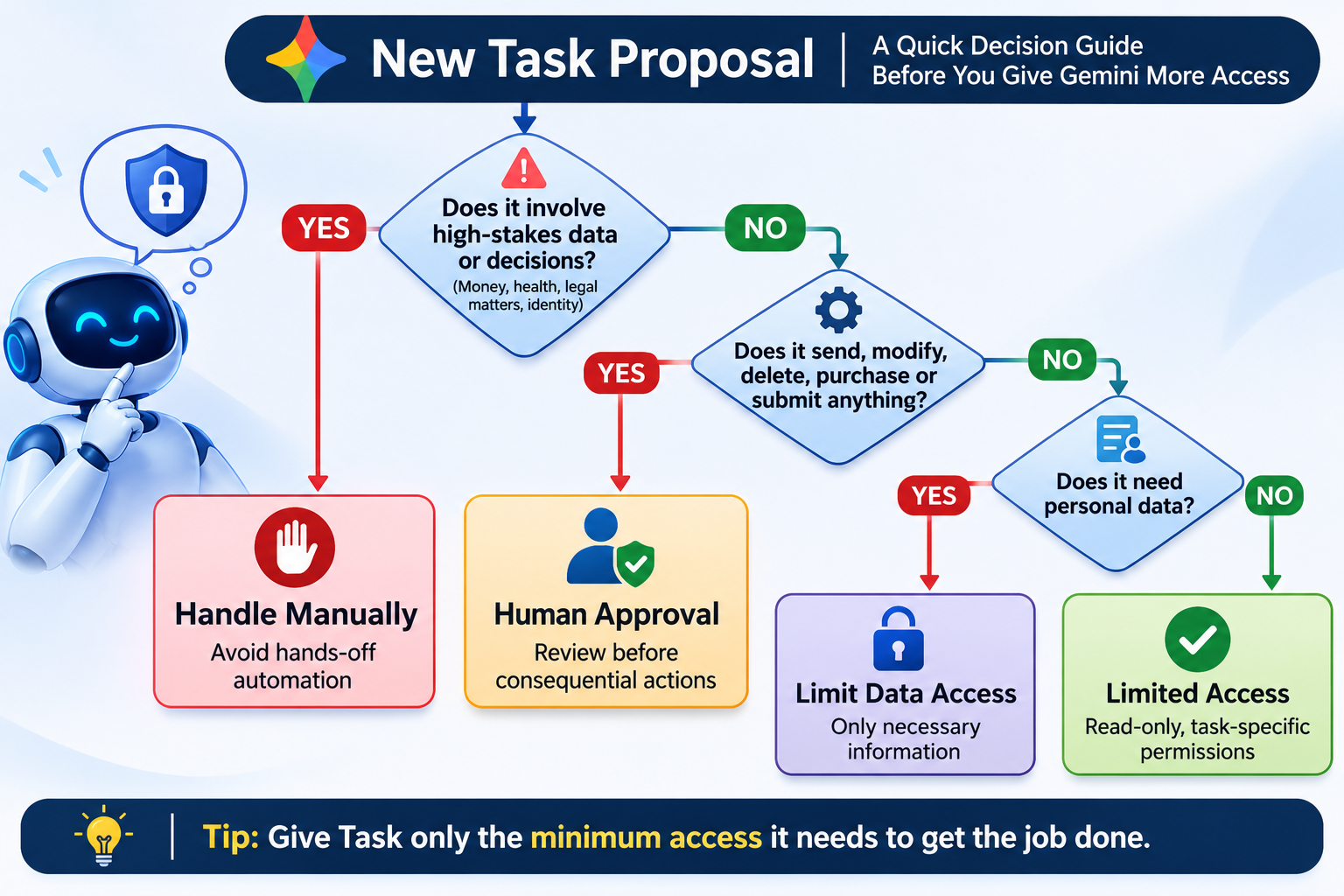
- Start with a low-risk, read-only task.
- Connect only the minimum apps it needs.
- Check the task’s permissions and schedule in its work panel.
- Run it manually once before making it recurring.
- Leave confirmations on for communication, data changes, purchases, and form submissions.
- Once a month, audit your Connected Apps and MCP servers and disconnect anything unused.
Here’s a rule of thumb I like: if you wouldn’t give a human assistant standing access to the same data and actions, don’t hand it to an AI agent by default.
If something goes wrong
Don’t wait to see how it plays out. Move quickly.
- Pause the task or take over.
- Open the task thread and look at its permissions, schedule, and recent actions.
- For Workspace actions, use the link in Spark’s confirmation to make changes in the relevant Workspace service.
- Disconnect the affected Connected App or MCP server and revoke its permissions.
- Review Gemini Apps Activity and delete task activity where it makes sense.
- Change your credentials only if you shared them directly or suspect your account was compromised.
For remote-browser sessions, Google says you can interrupt with Stop or Take Control, and delete remote browser data in Task settings. Be aware that deleting it signs you out of every site in the remote browser.
FAQ
Does Spark have access to all my Google data?
No. Access depends on the Connected Apps, permissions, and task-specific approvals you turn on. You can grant or deny permissions in the task thread and manage them in Browser or Connected Apps settings.
Can it send emails or make purchases without asking?
Google says Gemini is designed to ask for review and confirmation before sending communications, changing or deleting data, making purchases, completing financial transactions, and submitting web forms.
Are custom MCP apps safe?
Not automatically. Google doesn’t control, monitor, or secure third-party MCP servers, so vetting and supervision are on you.
Can I undo something Spark did?
For Workspace actions, yes, in part. Use the link in Spark’s confirmation to make changes in the relevant Workspace service.
Should I keep Keep Activity on?
Only if you need Connected Apps, custom apps, or task features. Google says tasks that use a remote browser or remote computer are only available with Keep Activity on, and you can manage that activity in Gemini Apps Activity.
The one question to keep asking
Don’t ask, “Can Gemini Spark do this?”
Ask, “What’s the smallest set of permissions, apps, schedules, and data this task needs to work safely?”
That question is what turns Task from a handy but opaque automation tool into something with clear boundaries, predictable approvals, and a fast way to shut things off when you need to.
Sources: Google’s Gemini Help Center pages on Spark, task permissions, and schedules.