

Most automation tools ask you to build a workflow first. You drag boxes around, connect triggers, and debug why step four never fires. Gemini Spark works differently. You describe the job in plain English, tell it when to run, and it gets on with it.
Below are seven automations you can set up today. Each has a prompt you can paste, a few setup steps, and an honest note about where it falls short. One thing before you start: Google has been renaming things, so depending on your app you may see “Spark” or “Task.” It’s the same task-automation experience.
What You Need Before Starting
- A Gemini account with Spark/Task access
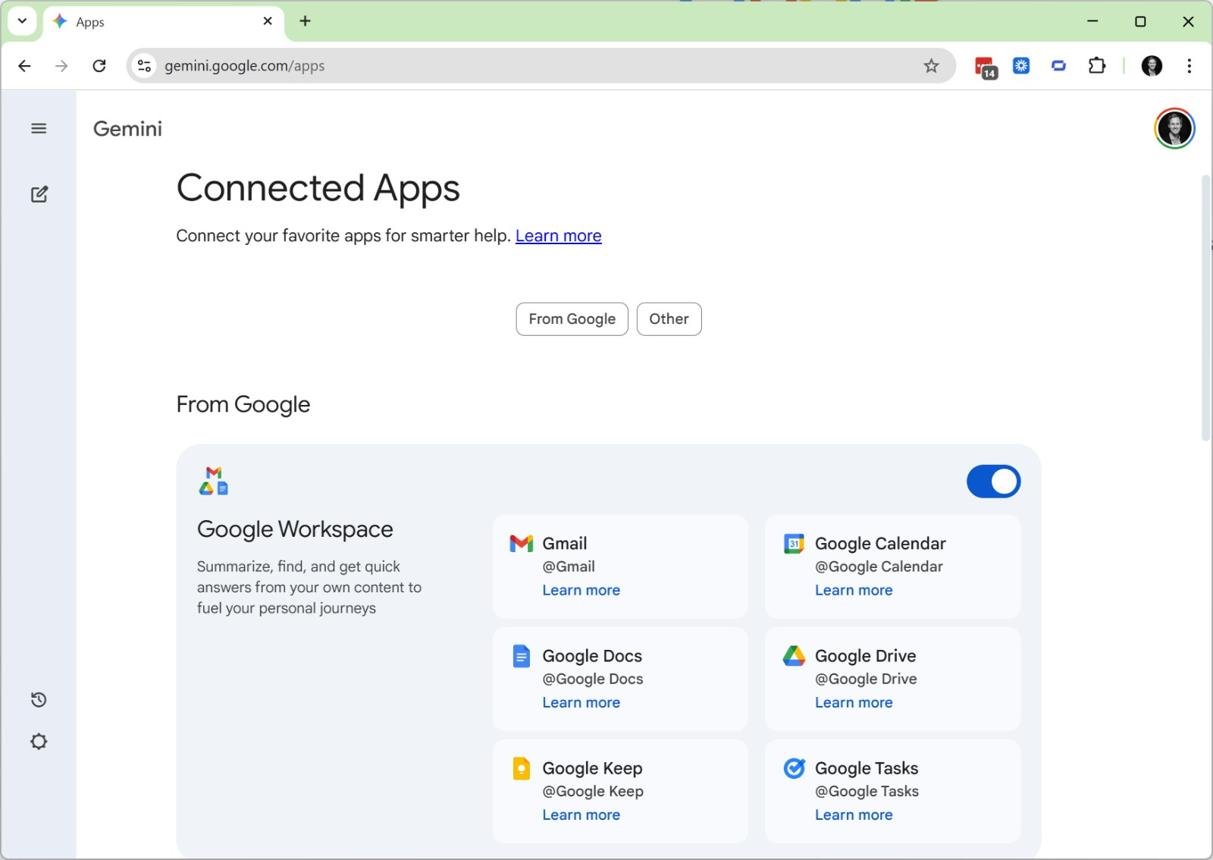
- Gmail, Calendar and Drive connected, plus any third-party apps you want to use (Google has been rolling out connections like Dropbox, Zillow, Canva, Instacart and OpenTable, though availability varies)
- A clear goal, a preferred output format, and a schedule
Vague instructions get vague results, so the third point matters most.
How Spark Tasks Work
Three building blocks:
- Task: the goal itself, like “summarize my week.”
- Schedule: when it runs. That can be once, hourly, daily, weekly, monthly, yearly, or after a Gmail trigger.
- Monitor: a condition Spark checks during the day, like a delayed flight.
Google’s own examples give a good feel for the idea: “Every day at 8:00 AM, give me an update on AI news,” or “When my flight is delayed, notify me and propose an update to my itinerary.”
One caveat: monitors check every few hours, not every minute. Don’t rely on one to grab limited tickets the second they drop. Also, Spark sometimes needs you to take over when it hits something in its browser, so check in on your tasks regularly.
Automation 1: Daily Priority Brief
Best for: starting the day knowing what matters.
Every weekday at 7:30 AM, review my unread Gmail, today’s Google Calendar events, and recent files in Google Drive. Create a concise priority brief with: 1) urgent emails needing a reply, 2) today’s meetings with preparation notes, 3) the three most important tasks, and 4) anything I may have missed. Keep it under 300 words.
Setup: Open Gemini, switch to Tasks, paste the prompt, and set it for weekdays at 7:30 AM. Read the first few briefs and tweak the wording until it matches how you think.
Limitation: Let it summarize and prioritize. Don’t let it send replies for you.
Automation 2: Inbox Cleanup Assistant
Best for: newsletter and promo overload.
Every Monday at 9:00 AM, review newsletters and promotional emails from the past seven days. Summarize the five most useful items, then suggest newsletters I can archive or unsubscribe from. Do not unsubscribe from anything without showing me the list first.
Setup: Create the task, connect Gmail, and set a weekly schedule. Review the unsubscribe suggestions before approving anything.
Limitation: Keep unsubscribing human-approved. A wrong guess here can cost you an email you actually wanted.
Automation 3: Meeting-Prep Assistant
Best for: walking into calls with context.
Every weekday at 8:00 AM, check today’s and tomorrow’s calendar meetings. For each meeting with external attendees, prepare a short brief: attendee context, likely agenda, relevant Drive documents, and three smart questions to ask. Save each brief in a Google Drive folder called “Meeting Prep.”
Setup: Make the Drive folder first, add the prompt as a scheduled task, and run it for a week before judging the format.
Limitation: Don’t have it send briefs to attendees. Keep sharing manual.
Automation 4: Personal AI News Digest
Best for: following a niche without opening twenty tabs.
Every day at 6:00 PM, search for major updates about AI agents, AI automation, and Gemini. Pick the five most important stories from reputable sources, summarize each in two sentences, include the source link and publication date, and explain why it matters for freelancers and small businesses.
Setup: Paste it into a new task, set it daily, and add preferred sources or outlets to skip.
Limitation: Always ask for links and dates. You want to be able to verify what it tells you.
Automation 5: Weekly Client Follow-Up Tracker
Best for: freelancers and founders who let conversations slip.
Every Friday at 4:00 PM, review emails from the past seven days from clients and prospects. Create a follow-up list with: client name, last message date, outstanding request, suggested next action, and a draft follow-up email. Do not send any email without my approval.
Setup: Connect Gmail, set it for Friday afternoon, and read the drafts before anything goes out.
Limitation: Treat it as a drafting and tracking helper, not an autonomous sender.
Automation 6: Invoice and Receipt Organizer
Best for: keeping your finances tidy without filing by hand.
Every Sunday at 6:00 PM, check my Gmail for invoices, receipts, and payment confirmations from the past seven days. Extract the vendor, date, amount, currency, and payment status. Save a summary table in Google Drive and flag any missing receipts or duplicate charges.
Setup: Connect Gmail and Drive, create a “Finance” folder, and review the flagged items each week.
Limitation: Never give it permission to make payments or change financial records. Read-only is the right setting.
Automation 7: Travel-Disruption Monitor
Best for: not refreshing your inbox every time a trip is at risk.
Monitor my Gmail for flight-delay, cancellation, gate-change, or hotel-change notifications related to my upcoming trip. When one arrives, summarize the change, tell me what action is needed, and propose an updated itinerary. Notify me before making any booking changes.
Setup: Make sure your travel confirmations are in Gmail or Drive, create the monitor, and keep any booking changes manual.
Limitation: Monitors run every few hours, so this is a heads-up tool, not a minute-by-minute alert.
How to Write a Better Spark Prompt
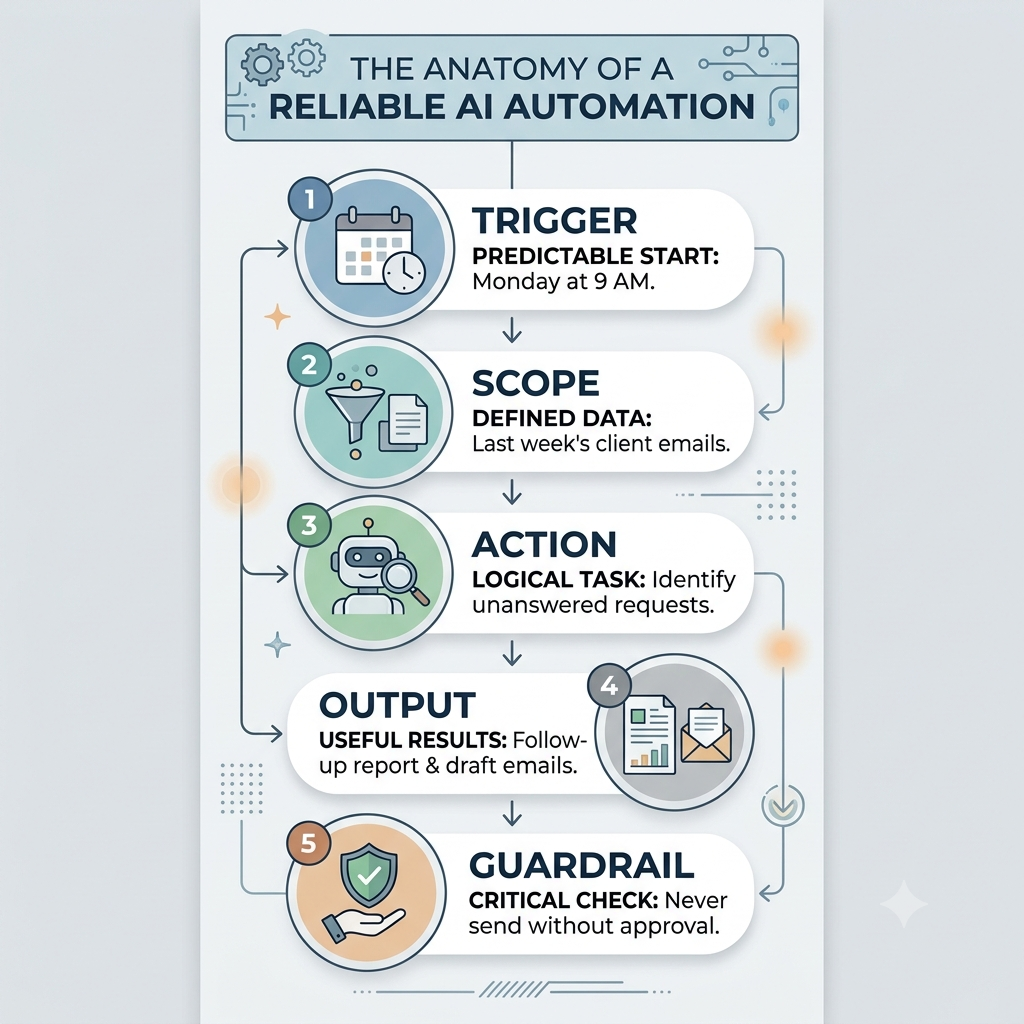
Use this formula: trigger + scope + action + output format + guardrail.
Every Monday at 9 AM, review last week’s client emails, identify unanswered requests, create a follow-up table, and draft replies, but do not send anything without approval.
Five quick upgrades:
- Name the exact schedule.
- Limit which data sources it can touch.
- Define the output format.
- Add at least one “do not” rule.
- For research tasks, require sources, dates or links.
You can also attach files from an upload or Drive to give it more to work with.
Common Mistakes to Avoid
- Going too broad. “Manage my email” is a recipe for confusion.
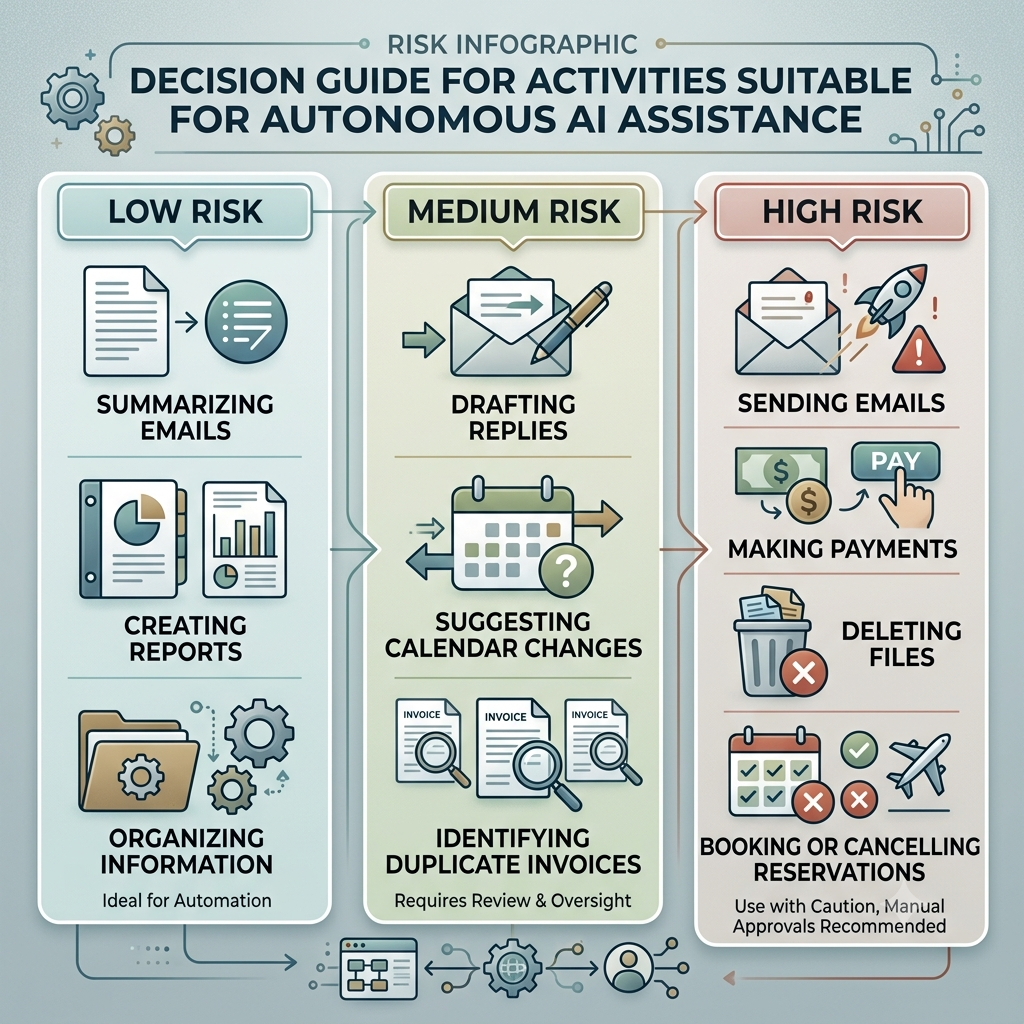
- Skipping approval. Don’t let it send, delete, buy or unsubscribe on its own.
- Using monitors for urgent events. A few hours’ delay is fine for a newsletter, not for a flash sale.
- Never checking in. Look at task history and scheduled jobs now and then.
- Trusting it untested. Run each workflow manually once before you rely on it.
Spark works best on recurring, low-risk, clearly defined jobs. Don’t set up all seven at once. Pick one, run it for a week, fix whatever annoys you, then add the next. By the end of the month you’ll have a small set of assistants that quietly handle the boring parts of your week.