
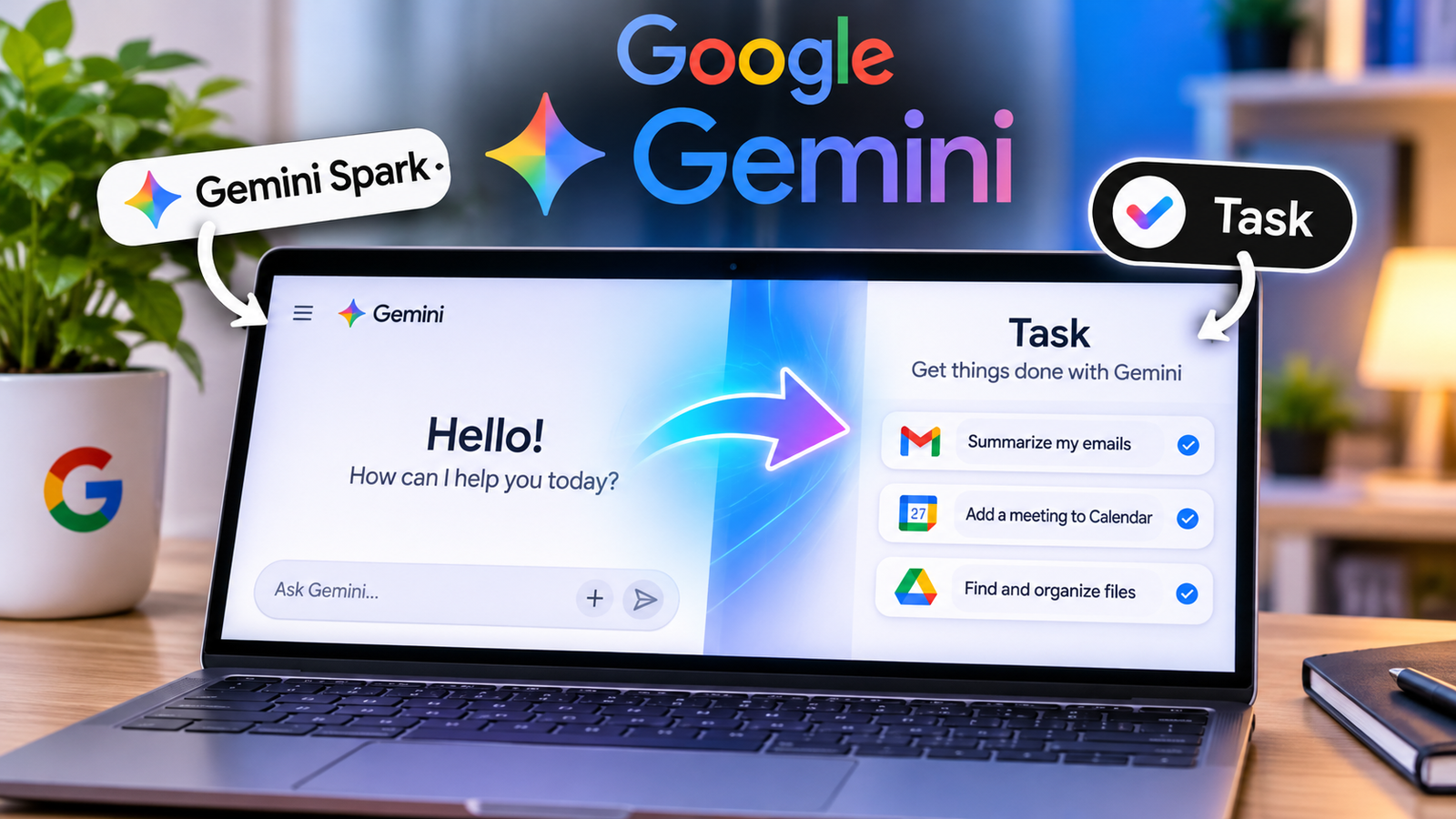
If you opened Gemini recently and couldn’t find Spark, relax. Google renamed it Task. Your existing tasks and schedules are still in the sidebar, and you now reach the feature through a Chat and Task toggle next to the prompt box.
| Before | Now | |
|---|---|---|
| Name | Gemini Spark | Task |
| Where it lives | A separate Spark area | A toggle beside the prompt box |
| Your old work | Spark tasks and schedules | Still in the sidebar |
| Settings | Spark settings | Settings → Task settings |
Why Google renamed it
Spark has been in beta since May. According to Google, people kept describing what they wanted in the same way: they wanted Gemini to help them get “tasks” done. So Google picked the plainer name.
My read is that this isn’t a quiet cancellation. It looks like Google promoting Spark from a branded beta experiment to a core part of Gemini. The giveaway is placement. Task now sits right next to normal chat instead of in its own corner of the app.
Where to find Task
On the web or Mac:
- Go to gemini.google.com, or open the Gemini app on your Mac.
- Click Task below the text box.
- Describe your goal, when it should run, and any skills, files, or connected apps it needs.
- Hit Submit. You can keep adding instructions while it works.
On mobile: Google’s Help Center covers Android, iPhone, and iPad. The app supports Task, but the exact tap path isn’t spelled out in the docs I found, so follow the on-screen setup in your app.
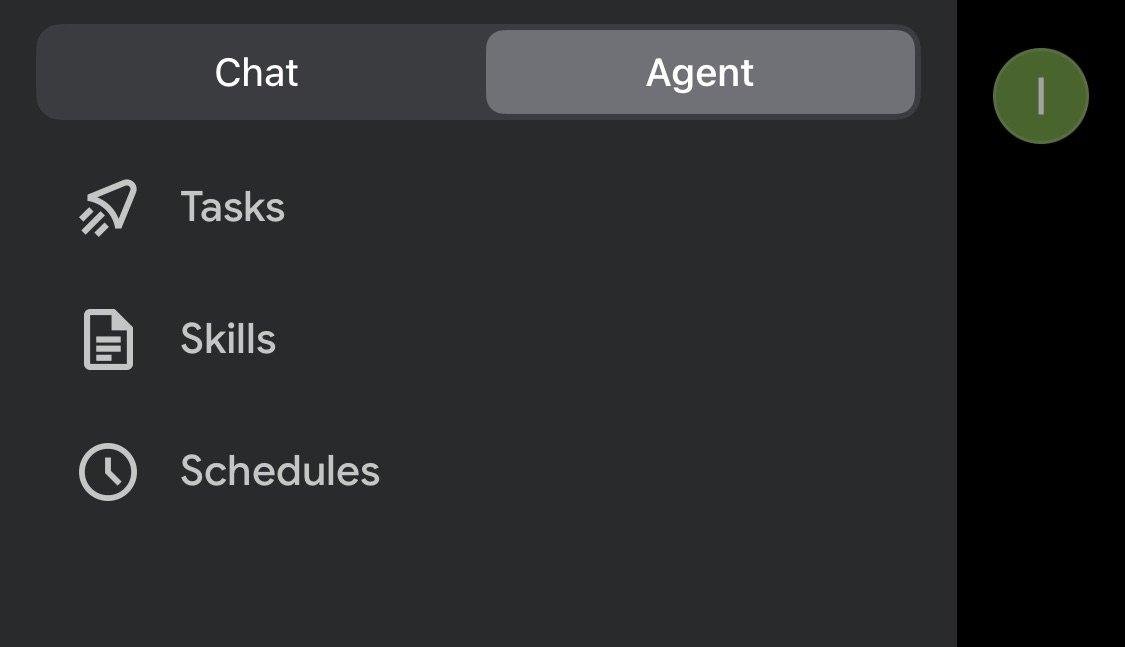
Sidebar: Your existing task threads and schedules stay here, and the Scheduled page collects every schedule in one place.
Task vs. Chat
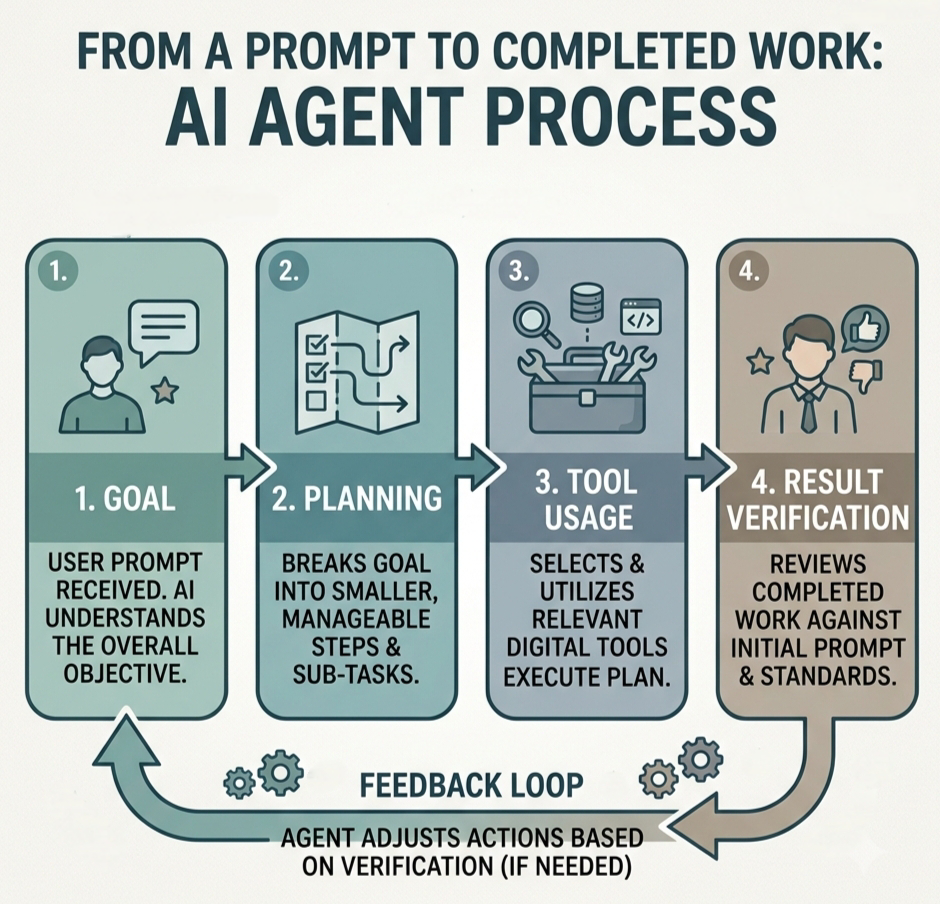
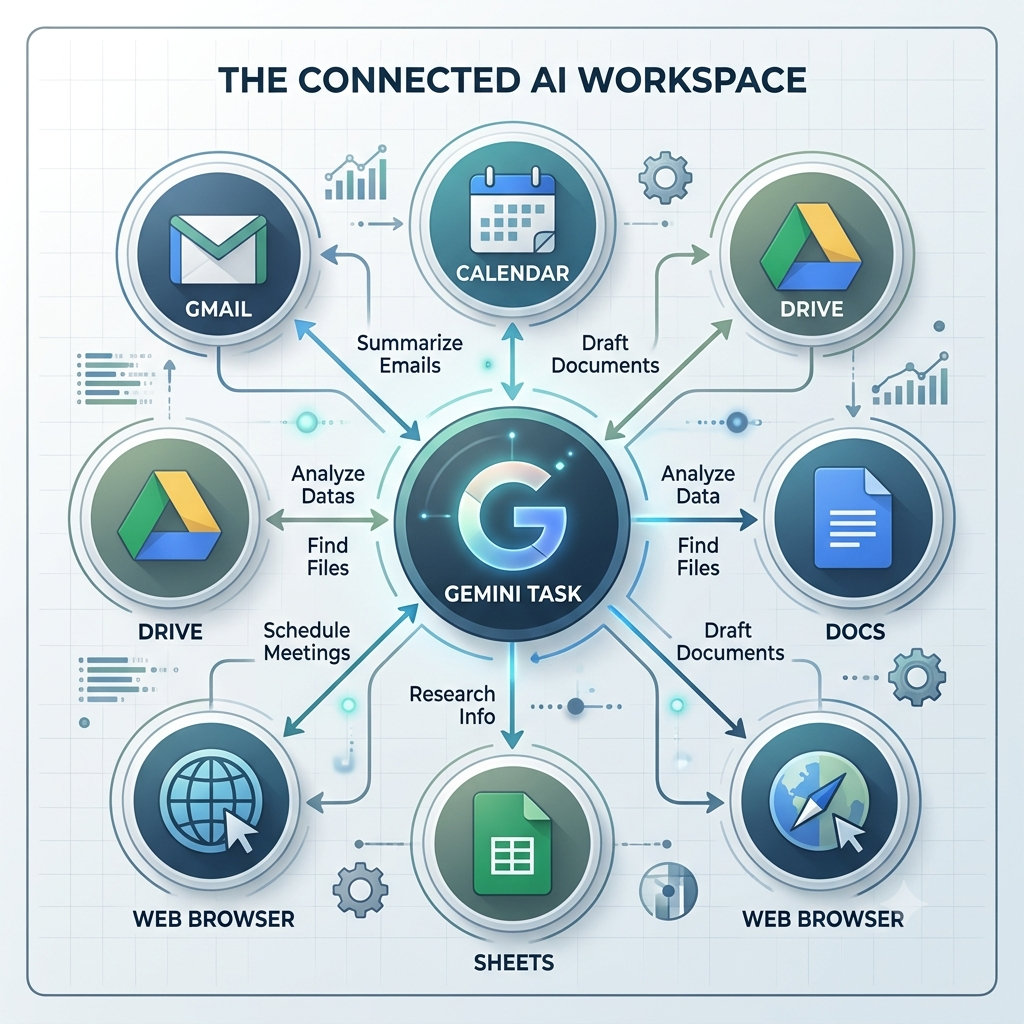
Not every Gemini conversation is now an agent job. Chat is the Gemini you already know. Task is for handing off a bigger goal or workflow that may involve several steps, files, connected apps, browsing, or a schedule.
Google breaks it into three pieces. A task is the goal, a schedule decides when the work happens, and skills are reusable instructions that tell Gemini how to do it.
Here’s a quick example. “Plan and manage my business trip to London” is a task. “Every day at 8 AM, give me an update on AI news” is a task with a schedule attached.
These are just two possibilities. AI agents can also support research, customer service, business reporting and content workflows, showing how the same goal-based approach can be applied to different kinds of work. Explore these “real-world AI agent use cases” to understand the wider possibilities.
The new Scheduled page
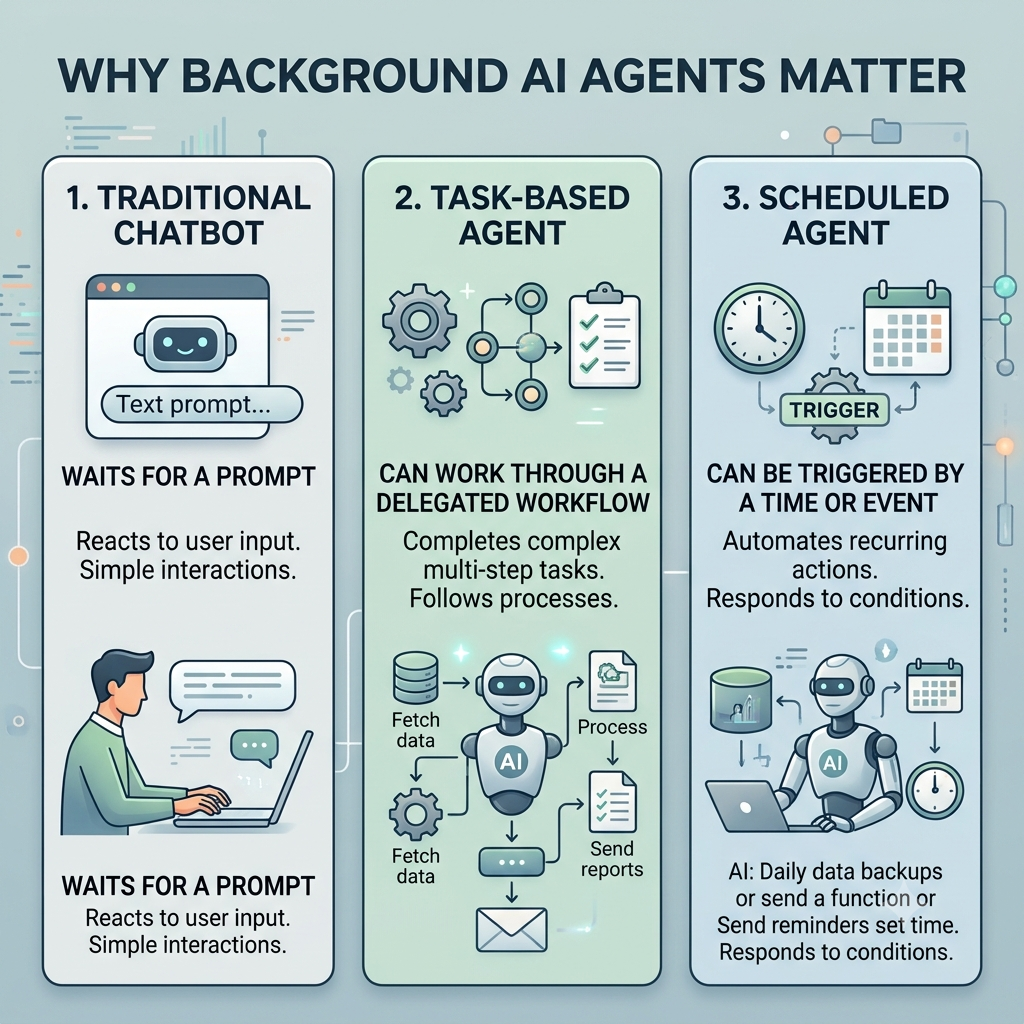
Scheduled is where recurring and background work lives. To make one, start from the sidebar, name it, write your instructions under Plan, pick when it runs, and save. It lands in your Active list.
Google supports three types: time-based schedules, Gmail monitors, and topic monitors. Your schedules are sorted by status:
- Active: running or ready to run
- Paused: stopped by you, for now
- Completed: finished, and can only be deleted
You may see a “Suggested” section mentioned in some write-ups. Google’s documentation doesn’t list it, so I wouldn’t count on it showing up for you.
Pausing, resuming, editing, and deleting
- Open Scheduled from the sidebar.
- To pause or resume, open the schedule and choose More → Pause or Resume.
- To edit directly, select the schedule, change the timing or instructions, and click Save.
- To edit by talking to Gemini, hover over the schedule, click Go to chat, and tell it what to change.
- To delete a finished one, hover over it and choose More → Delete.
Two limits to know about: you can have up to 50 active schedules, and completed schedules can’t be edited or resumed.
What happens to your old Spark tasks
Nothing bad. This is a rename and a layout change, not a reset. Your tasks and schedules are still in the sidebar, and each task thread keeps its work panel (open it from the progress chip) showing steps, progress, schedules, and any files Gemini read or created.
If you turn Task mode off, your tasks and schedules are paused, not deleted. What does get deleted is your remote browser data and remote code-execution data. Local Chrome browsing data isn’t touched.
This also highlights an important consideration with autonomous AI: when an agent can access websites, connected accounts and external tools, its permissions need to be carefully controlled. Understanding “how AI-agent hijacking can happen” helps explain why these security boundaries matter.
Task settings
- Turn Task mode on or off: On the web, go to Settings → Task settings and use “Use task mode to hand off work.” On Mac, it’s Gemini → Settings → Tasks.
- Delete remote browser data: Settings → Browser → Delete remote browser data.
- Delete remote code-execution data: Settings → Task settings → Delete remote code execution → Delete.
Who can use it
Per Google’s Help Center, you need to:
- Be 18 or older
- Use a personal Google Account
- Have a Google AI Pro or Ultra subscription
- Have Keep Activity turned on
- Opt in to Personal Intelligence
Task works in the Gemini mobile app, the Mac app, and the web app. It isn’t available in the European Economic Area, Nigeria, Switzerland, or the United Kingdom.
These are the requirements as documented today, and they could change. If you don’t see Task, check the in-app interface and Google’s release notes, since rollouts vary by country and plan.
So, is Spark gone?
No. The name is gone, but the feature isn’t. Google renamed it and moved it into the main Gemini interface. The real change is how easy it is to find. Instead of hunting for a separate Spark menu, you flip to Task mode and manage recurring work from Scheduled.