
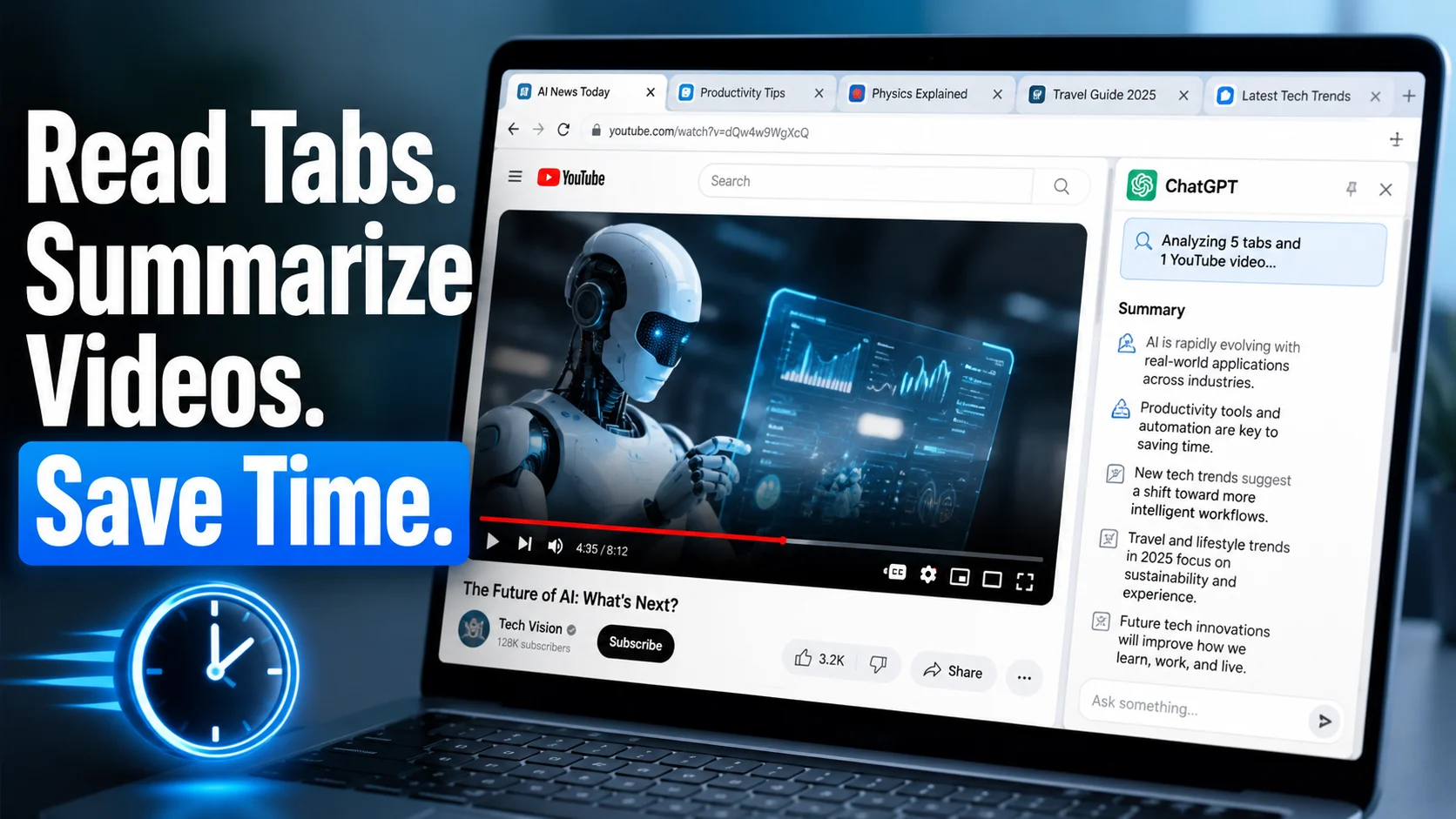
Copy-pasting is getting crushed. Workers waste over 4 hours every week switching between open browser tabs, re-reading articles, and manually skimming hour-long YouTube clips.
With ChatGPT’s official Chrome integration reading live page context and summarizing videos directly from a native side panel, could manual tab-hopping finally disappear?
This side-panel upgrade promises to slash repetitive research steps and transform how people gather context across multiple web sources.
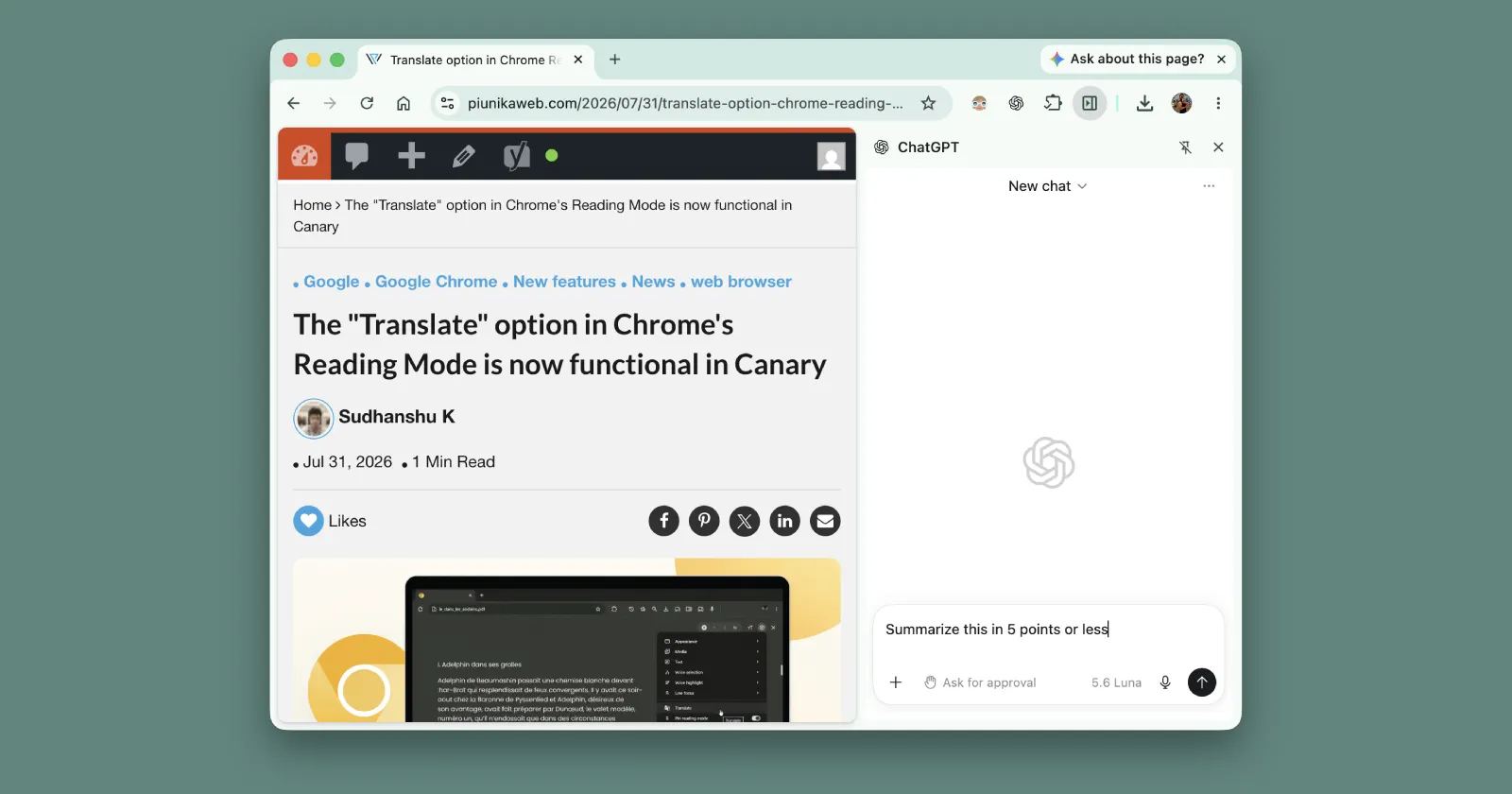
What ChatGPT Chrome Integration Does
Instead of opening chat.openai.com in a separate tab, copying chunks of text, and manually pasting transcripts, the extension brings the AI right into your active browser workspace.
- Live Open Tab Context: The AI can analyze text from your active or background browser tabs.
- Instant Video Summaries: Summarizes lengthy YouTube lectures, podcasts, or tutorials in seconds.
- Side-Panel Workflow: Keeps chat interactions pinned alongside your main reading view.
| Capability | What It Helps With | Practical Use |
|---|---|---|
| Open Tabs | Pulls live page context | Compare 5 news sources simultaneously. |
| YouTube Videos | Summarizes long clips | Extract key takeaways from a 1-hour keynote. |
| Side Panel Chat | Keeps workflow in one place | Ask follow-up questions without leaving the page. |
Why It Matters for Daily Productivity
If your browser could become a active research assistant, how much of your current workflow would disappear?
By bridging the gap between static web pages and conversational AI, research speeds up dramatically. According to setup guides on ChatGPT Learn Extension Docs, the side-panel connection lets users ask natural language questions directly about signed-in web sessions or open documentation.
Real-World Use Cases
The ability to cross-reference multiple pages changes how professionals consume information.
- Researchers: Ask ChatGPT to identify contradictions or common themes across five open tabs.
- Writers & Journalists: Turn long video press conferences into bulleted key points before drafting.
- Marketers: Scan competitor landing pages without jumping between separate note apps.
- Students: Condense complex academic papers and recorded lectures into a single review guide.
“The real advantage is not speed alone—it is how the tool changes the way you gather and organize context across chaotic web sessions.” — Workflow Automation Strategist
Step-by-Step Usage Guide
Getting started takes less than a minute once the plugin is active:
- Open your target tabs: Navigate to the articles, documentation, or YouTube videos you want to review.
- Launch the side panel: Click the ChatGPT icon in your Chrome toolbar or use shortcut
Cmd + Shift + .on Mac. - Prompt the extension: Ask for a cross-tab comparison, summary, or contradiction check.
Pro Prompt to try: “Compare the main arguments across these open tabs. Highlight where they agree, where they conflict, and what key facts are missing.”
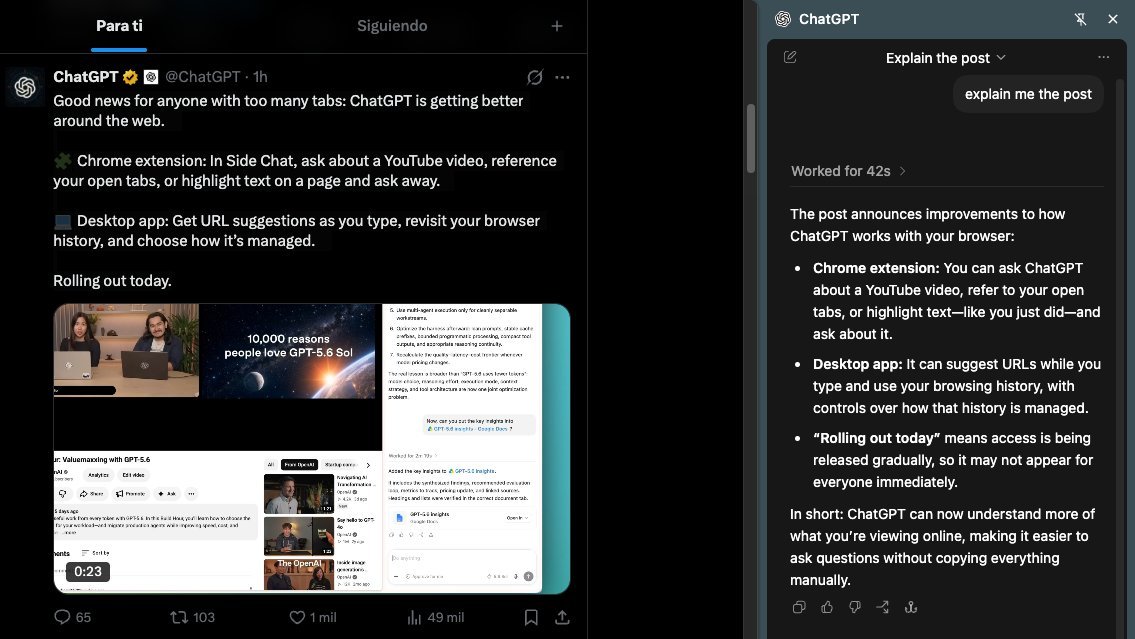
Good news for anyone with too many tabs: ChatGPT is getting better around the web.
— ChatGPT (@ChatGPT) July 30, 2026
🧩 Chrome extension: In Side Chat, ask about a YouTube video, reference your open tabs, or highlight text on a page and ask away.
💻 Desktop app: Get URL suggestions as you type, revisit… pic.twitter.com/BIjS94jBQc
Limits and Caution
While side-panel AI speeds up research, automated summaries have distinct boundaries:
- Transcript dependency: Video summaries rely heavily on spoken captions rather than visual cues.
- Context flattening: Nuanced arguments or subtle sarcasm can be lost in condensed bullet points.
- Verification needed: Users must still verify critical facts and citations before publishing work.
For detailed installation and extension source updates, check the official repository on GitHub YouTube Summary with ChatGPT or explore community tools on Glasp YouTube Summary Extension.
The future of browsing may not be about opening more tabs—it may be about asking better questions.