
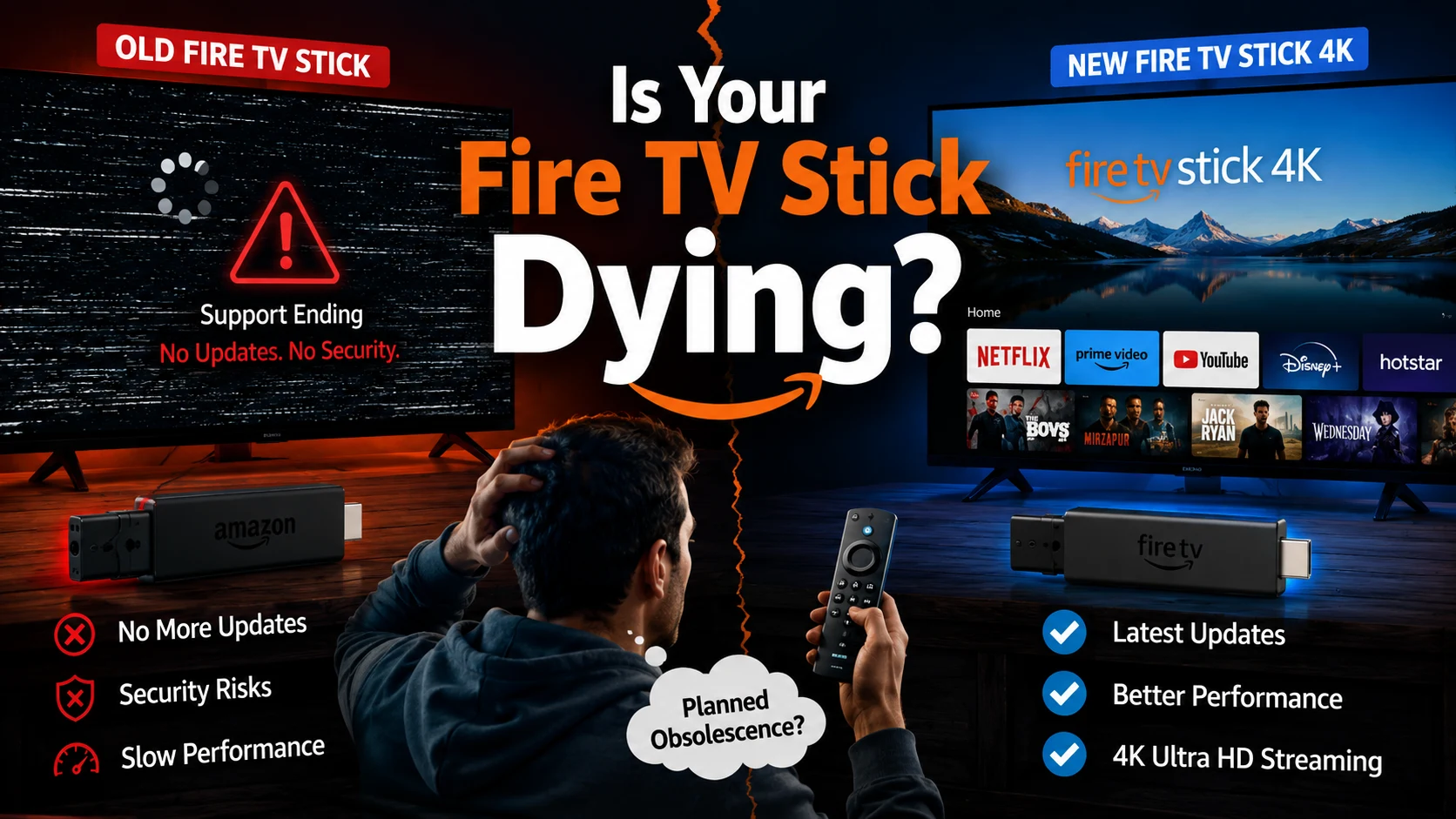
Your Fire TV Stick could be aging faster than your television—and that should worry anyone who relies on it every night.
Amazon has committed to software security support through December 31, 2030, for many of its newer models, while older hardware faces tighter expiration clocks or has already lost updates. So, is your streaming stick quietly approaching its expiration date, and do you need to upgrade now?
A Fire TV Stick does not usually fail with one dramatic warning. Instead, users notice slower menus, missing app features, crashes, or streaming apps that suddenly drop compatibility.
Why Amazon Fire TV Support Is Becoming a Concern
Your streaming stick relies on an intricate chain of hardware components, Fire OS versions, security patches, and app-level updates. When one layer ages out, performance degrades even if the device still powers on.
The Difference Between an Update Cutoff and a Dead Device
Reaching an end-of-support milestone does not mean your device will instantly stop working 1.1.3. However, it signals that security patches will cease, bugs will remain unfixed, and the risk of app incompatibility will climb sharply.
Which Fire TV Stick Models Are Most at Risk?
While recent hardware is protected for several more years, vintage models face immediate risks. Notably, Amazon’s published support guidelines provide coverage for most modern hardware through December 31, 2030, with the original 2018 Fire TV Stick 4K slated for cutoff a year earlier on December 31, 2029. First-generation legacy products have already lost official backing.
| Device Category | Risk Level | Recommended Action |
|---|---|---|
| First-generation Fire TV Stick | High | Plan an immediate upgrade if apps fail |
| Original Fire TV Stick 4K (2018) | Medium | Monitor performance ahead of its 2029 cutoff |
| Recent HD & 4K Max Models | Low | Keep updated and enjoy standard support through 2030 |
How to Check Your Fire TV Stick Model
To see where your hardware stands, navigate directly through your system dashboard 1.2.3:
- Turn on your television and go to the Fire TV home screen.
- Open Settings.
- Select My Fire TV.
- Choose About to view your exact device type and software version 1.2.3.
Warning Signs Your Streaming Stick Is Aging
Hardware degradation looks like persistent sluggishness rather than sudden failure. Watch out for frequent app crashes, missing updates, delayed remote inputs, and severe video buffering despite strong Wi-Fi.
Troubleshooting tip: Before buying a replacement, clear your app caches, uninstall unused software, and ensure you are using the original power adapter to rule out temporary power throttling.
Could Netflix and Other Apps Stop Working?
Yes. Individual streaming services dictate their own minimum system requirements. When apps update their encryption or video codecs, older operating systems are frequently left behind independently of Amazon’s own device schedules.
Is Amazon Practicing Planned Obsescence?
Consumer advocacy groups and class-action lawsuits have scrutinized tech manufacturers over device lifecycles 1.2.2, questioning whether older hardware is pushed toward obsolescence too quickly. While legal arguments continue, verifying official software timelines remains the most practical way to protect your setup.
Do You Need to Upgrade Right Now?
If your device runs smoothly and receives regular security patches, there is no need to rush 1.1.5. Consider an upgrade only if system crashes become routine or essential apps drop compatibility.
The second-generation Amazon Fire TV Stick 4K Max one-ups the standard model with Wi-Fi 6E support, though you’ll only notice its speed and reliability improvements with a compatible router. https://t.co/oo70rbHAfE
— PCMag (@PCMag) August 22, 2026
FAQs
Will my Fire TV Stick stop working on its support-end date? No, apps may continue functioning for a period, but security updates will cease, raising vulnerability and compatibility risks 1.1.3, 1.1.5.
How do I find my specific model name? Go to Settings > My Fire TV > About on your device interface 1.2.3.