
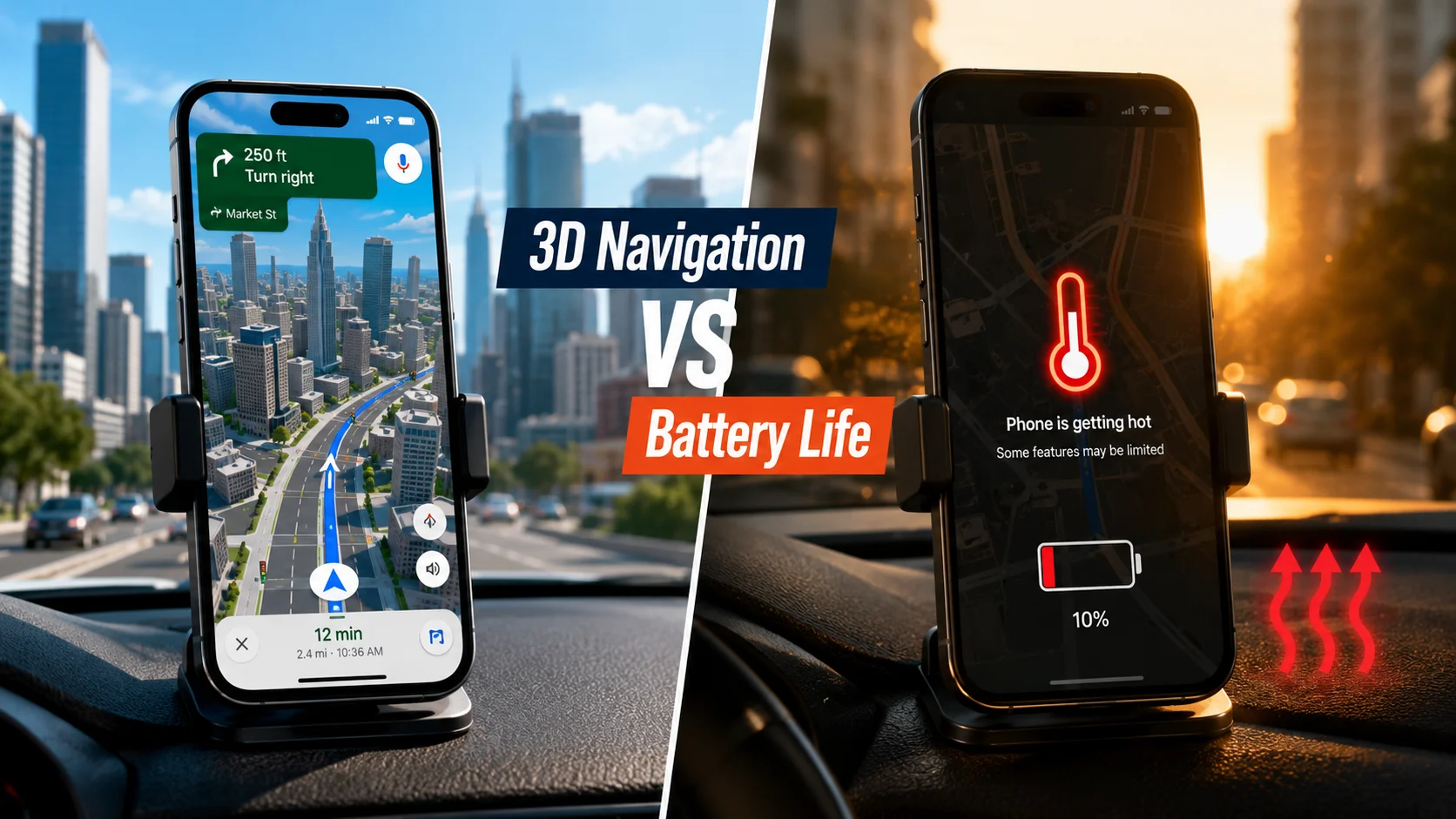
Google Maps just turned navigation into a heat test for older phones. Combining continuous GPS tracking, high display brightness, and real-time 3D building rendering can trigger severe thermal throttling, causing battery levels to plummet up to 30% faster and leaving drivers with lagging maps in direct sunlight.
If your phone is already warm on a dashboard mount, what happens when it’s rendering complex urban lighting, dynamic geometry, and mobile data at the same time? For drivers who depend on battery life and stable performance, this update may become a real problem fast.
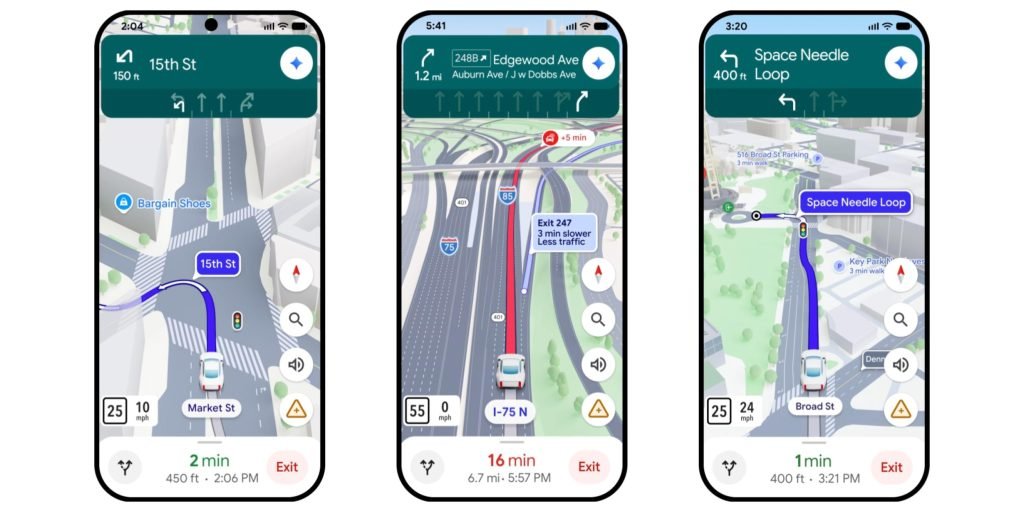
Is the visual upgrade worth losing battery life and screen visibility?
Why Real-Time 3D Rendering Overloads Older Hardware
Running live turn-by-turn navigation already demands steady processing power from the System-on-Chip (SoC). Adding real-time 3D building layers shifts extra workload to the GPU, creating a severe thermal bottleneck on older devices.
- GPS & Cellular Radios: Continuously pinging cell towers and satellites generates baseline internal heat.
- 3D Building Geometry: Rendering complex urban structures taxes older graphics processors.
- Dashboard Solar Heat: Direct sunlight through windshields compounds internal temperature spikes.
When internal temperatures cross critical safety thresholds, the OS forces thermal throttling. This dims the screen, drops map frame rates, and slows down system response times.
Why the Thermal Risk Matters
Overheating isn’t just an inconvenience; it directly degrades navigation reliability and long-term hardware health.
- Slower Performance: Heat forces the processor to slow down, making voice prompts lag.
- Accelerated Battery Degradation: Sustained high heat permanently damages lithium-ion battery capacity.
- Unreadable Displays: Automatic screen dimming makes maps impossible to view in bright sunlight.
- Trip Interruptions: Extreme heat triggers protective system shutdowns mid-route.
Is the visual upgrade worth losing battery stability on long drives?
Who Is Most Affected?
| Driver Type | Risk Level | Why |
|---|---|---|
| Older Smartphone Users | High | Smaller thermal headroom and less efficient GPUs. |
| Hot-Climate Drivers | High | Direct windshield sunlight accelerates heat accumulation. |
| Long-Distance Commuters | Medium | Extended navigation sessions increase cumulative battery wear. |
| Flagship Phone Users | Lower | Modern chips feature superior thermal dissipation and power efficiency. |
Google Maps Rolls Out Immersive 3D Navigation and Built-in Speedometer for Android Auto https://t.co/QBi5mfhpgq via @nokiapoweruser
— Nokiapoweruser (@Nokiapoweruser) July 27, 2026
How to Disable 3D Buildings in Google Maps
If your phone runs hot or stutters during navigation, turning off 3D graphics restores performance immediately:
- Open Google Maps on your smartphone.
- Tap your Profile Picture in the top-right corner.
- Select Settings, then tap Navigation Settings.
- Scroll down to Map Display options.
- Toggle off Show 3D Buildings.
Expert Explanation on Thermal Throttling
“When a smartphone renders heavy 3D visuals while running active GPS and cellular data, heat buildup forces the operating system to dial back CPU speeds and dim the screen to protect the battery.”
Official technical documentation from the Google Maps Platform details how complex 3D tile rendering demands graphics processing. Meanwhile, hardware guides on 9to5Google show step-by-step methods to disable 3D buildings on mobile devices and Android Auto setups. Furthermore, smartphone analysis from Phone Expert explains how heat degrades lithium-ion battery health over time.
Driver Takeaway
Use 3D buildings if your modern flagship stays cool. However, if your phone gets uncomfortably hot to the touch or stutters during trips, switch back to standard 2D view. On the road, map stability matters far more than visual flair.
For older phones, navigation should guide the road—not become the reason your battery dies mid-trip.